Use it in the editor
Every screen-recording panel in the Editor UI kit, step by step.
The Editor UI kit has the whole flow built in: the Record and Voiceover tools in the left rail, a Speech tab under Subtitles, Written guide in Export, and Translate… and Brand kit… in the Project menu.
The Record panel
Open Record in the left rail (desktop only: phones and tablets can't record their screen in the browser). It has two views:
- Start: record a new video, import one from the Capture extension, or reopen one of Your recordings. You see it when the open project isn't a recording, or after clicking + New / all recordings.
- The open recording: a card with its name, date and length, and what it has (Camera, Click log or No click log, Real pointer in video, Polished). Below it, three tabs: Steps, Polish and Camera (only when the recording has a camera). ← Back to this recording returns from the start view.
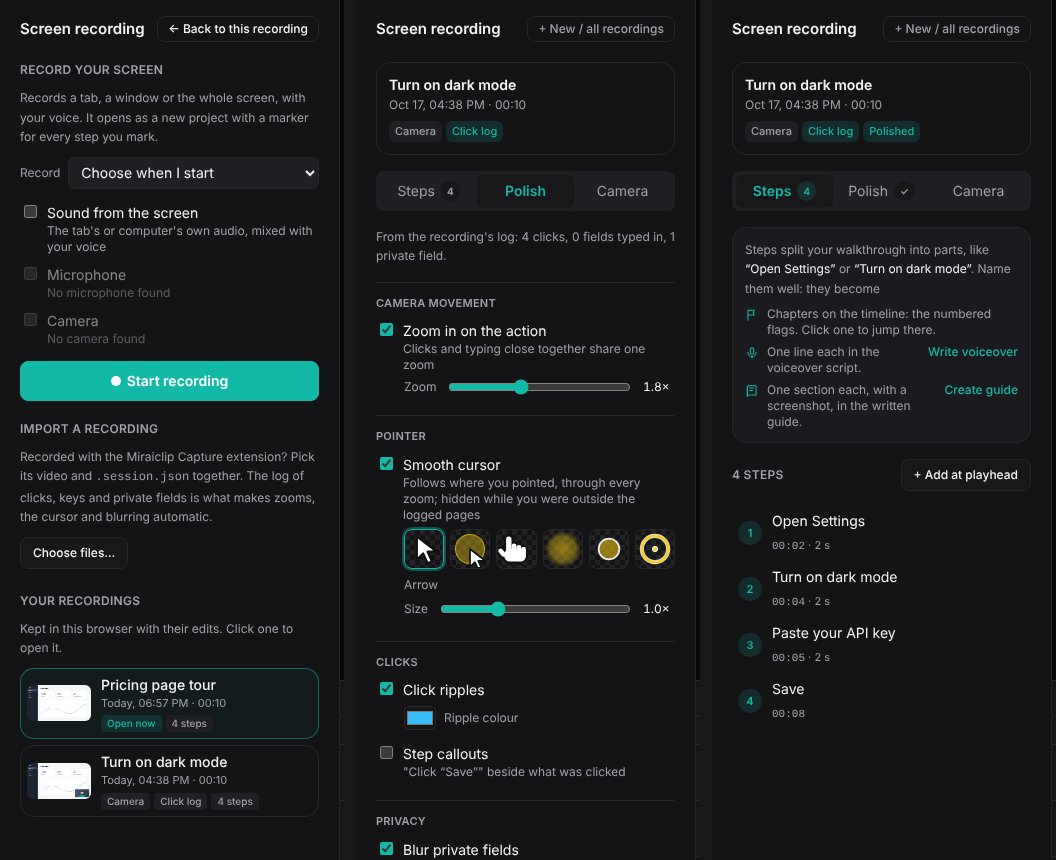
Your recordings. Every recording you make or import is kept in this browser with its latest edits (saved a moment after each change). Click one to open it; the open one is marked Open now. The bin icon removes one from the list; the project file and media aren't deleted. Opening a recording replaces the project that's open, so save a project you made some other way first (Project → Save project).
1. Record
Record your screen
- Under Record, choose what the share picker opens on: A browser tab, A window or The entire screen (or Choose when I start). You can still switch in the picker.
- Choose the sound and devices:
- Sound from the screen: the tab's or the computer's own audio, mixed with your voice.
- Microphone, and Camera (placed as a picture-in-picture you can shape and move afterwards).
- Click Start recording, and confirm in the picker.
- Click Mark step each time you start a new step.
- Click Stop. The recording opens as a new project, with a marker for every step. Discard throws it away.
If your computer has no camera or microphone, its option is greyed out ("No camera found"). If one is busy in another app or blocked for the site, the recording goes ahead without it and the panel tells you which.
Get the desktop recorder
On a Mac or a Windows computer, the bottom of the start view offers the desktop recorder with a Download button for your computer (on a Mac, the build for your chip when the browser reports it, with a link to the other one). Use it to record apps outside the browser, then open its .mcrec file with Import a recording. In your own editor, the links come from desktopRecorder in src/whitelabel.config.ts; set it to null to hide the offer.
Import a recording
Recorded with the Capture extension? Click Choose files… and select the video and its .session.json together. Only recordings with that log can be polished automatically.
2. Steps
Steps split your walkthrough into parts, like "Open Settings" or "Turn on dark mode". You mark them while recording (Mark step, or Alt+Shift+S with the extension), or add them afterwards. Each one becomes:
| Where | What it does | From the Steps tab |
|---|---|---|
| The timeline | A flag on the ruler with the step's number and name, and a dashed line through the tracks. Click the flag to jump there | |
| The voiceover | One line of the script per step, timed to it | Write voiceover |
| The written guide | One section per step, with its own screenshot; the name is its heading | Create guide |
In the Steps tab:
- The list shows each step's number, name, start time and length. The step the playhead is in is highlighted.
- Click the number or the time to jump there. Click the name to rename it (Enter saves).
- Move here moves a step to the playhead; the bin removes it.
- + Add at playhead adds a step where the playhead is.
Give steps short names that say what happens: they're the guide's headings and the voiceover's prompts.
3. Polish
The Polish tab reads the recording's click log and shows what it found ("4 clicks, 1 field typed in, 1 private field"). Its options are grouped by what they change: Camera movement, Pointer, Clicks and Privacy.
A recording made in the editor has no click log (a web page can't see clicks in another tab or app). Its Polish tab says so, with how to get one, instead of showing options that can't work. Steps, the camera, speech cleanup, the voiceover and the written guide all work without a log.
| Option | What it adds |
|---|---|
| Zoom in on the action | Zooms on clicks and typing. Actions close together share one zoom, and the next zoom pans instead of bouncing out. Set the strength with the Zoom slider (1.3× to 2.6×, default 1.8×) |
| Smooth cursor | A clean cursor that follows the recorded pointer, lands on every click, and follows every zoom. Pick its look below |
| Click ripples | A ripple at each click, in the Ripple colour you pick |
| Blur private fields | Pixelates passwords, card numbers, tokens and anything marked private, following the page as it scrolls |
| Step callouts | "Click “Save”" beside each clicked control (off by default) |
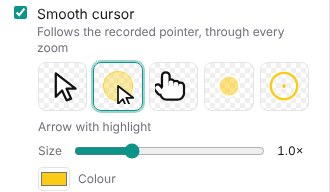
Cursor styles. With Smooth cursor on, pick how it looks. Each preview shows the cursor as it will appear:
| Style | Looks like | Good for |
|---|---|---|
| Arrow | The usual white pointer | Most product videos |
| Arrow with highlight | The pointer with a soft coloured circle around its tip | Busy screens, where viewers lose the pointer |
| Hand | A pointing hand | Videos about links and buttons |
| Halo | A soft coloured glow | Highlighting the real pointer in a window or screen recording |
| Dot | A soft round dot | A touch or presentation feel; also a pointer highlight |
| Ring | A ring with a centre dot | Showing a spot without covering it; also a pointer highlight |
Halo, Dot and Ring have no pointer of their own.
Size scales the cursor (0.6× to 2×). Colour sets the highlight, dot or ring colour. The cursor still grows a little with every zoom.
Window and screen recordings have the real mouse pointer in them: Chrome always records it there and no web page can stop it. For those, the option is called Highlight the pointer, and offers only the styles without a pointer of their own (Halo, Dot, Ring). They sit exactly on the real pointer (no smoothing) and disappear while it's outside Chrome, so you see one pointer with a highlight, never two. Tab recordings have no pointer in them, so any style can be drawn.
A tab recorded in the editor (not with the extension) has neither the pointer nor a click log, so its video has no cursor at all. The panel says so when you pick A browser tab.
Click Apply polish. Everything lands on the timeline as one undo step: the zooms are keyframes on the recording, and the cursor, ripples and callouts get their own tracks. Change the options and click Re-apply polish to replace it.
Cuts and the voiceover change the video's timing. When the recording is polished, the polish is planned again after each of them, with the same settings, so it stays on the action.
4. Camera
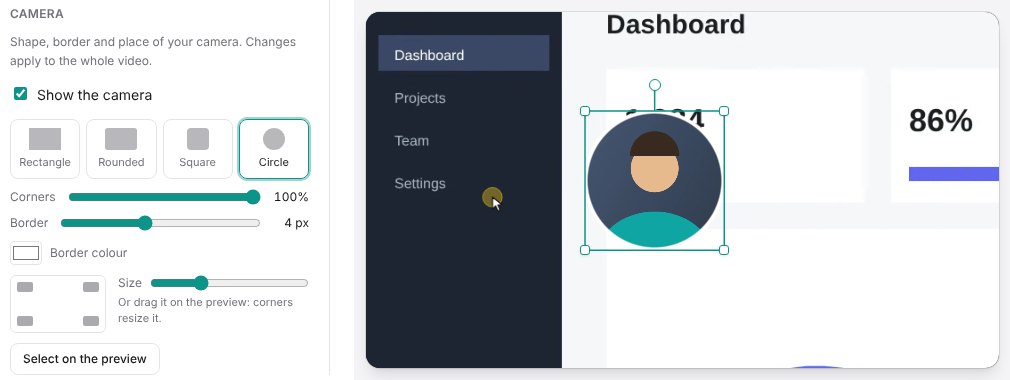
When the recording has a camera, it starts as a circle in the bottom-right corner, and the Record panel shows a Camera section. Every change applies to the whole video, including the parts a cut or the voiceover split off, and each is one undo step.
| Control | What it does |
|---|---|
| Show the camera | Hides or shows the camera |
| Rectangle, Rounded, Square, Circle | The shape. Square and circle crop the sides of the picture (it isn't squashed) |
| Corners | How round the corners are. 100% on a square is a circle |
| Border and Border colour | A border inside the edge, following the shape |
| Corner picker | Moves it to a corner, a small gap from the edges |
| Size | How wide it is. In a corner it stays in the corner; placed by hand, it grows or shrinks in place |
Put it anywhere. Click the camera on the preview, or click Select on the preview, then drag it. Drag a corner handle to resize it. Hold Alt while dragging to turn off snapping to the centre and edges. The selection box fits the visible shape, so a circle is selected as a circle.
If you move only one part of a split camera, the panel offers Use this position everywhere: select the part you like first.
5. Speech
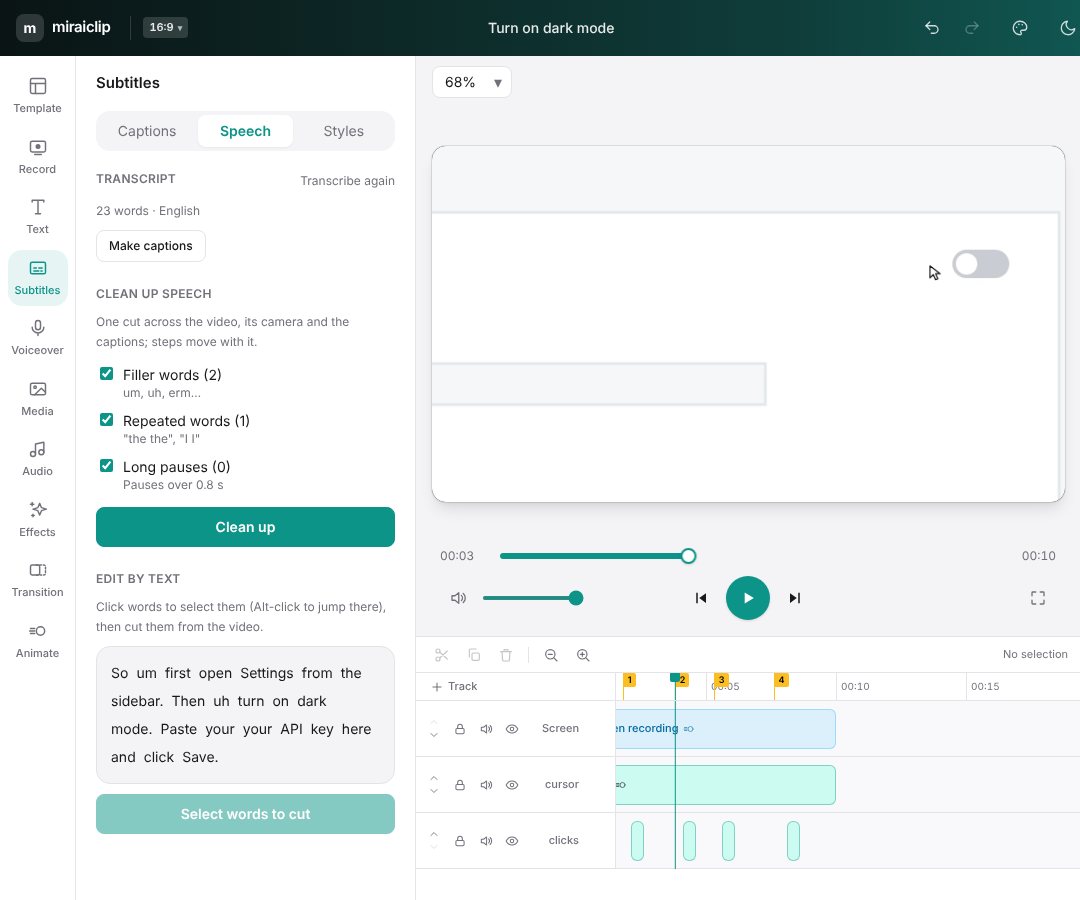
Open Subtitles and the Speech tab.
Transcribe. Pick the Language (or Detect) and click Transcribe. This needs OPENAI_API_KEY or DEEPGRAM_API_KEY on the server; with both set, choose the Service. Transcripts are saved in your browser per recording, so you only transcribe once.
Make captions. Turns the transcript into word-timed captions on the Subtitles track, in the caption style you picked under Styles.
Clean up speech. Shows how many filler words (um, uh, erm…), repeated words ("the the") and long pauses (over 0.8 s) it found. Untick any you want to keep, then click Clean up. It's one cut across the video, its camera, the captions and the steps, and one undo.
Edit by text. Click words in the transcript to select them (Alt-click jumps the playhead there), then Cut N words. The video, the camera, the captions and the steps all follow.
6. Voiceover
Open Voiceover in the left rail. Use it when you'd rather have a clean, scripted voice than your own recording.
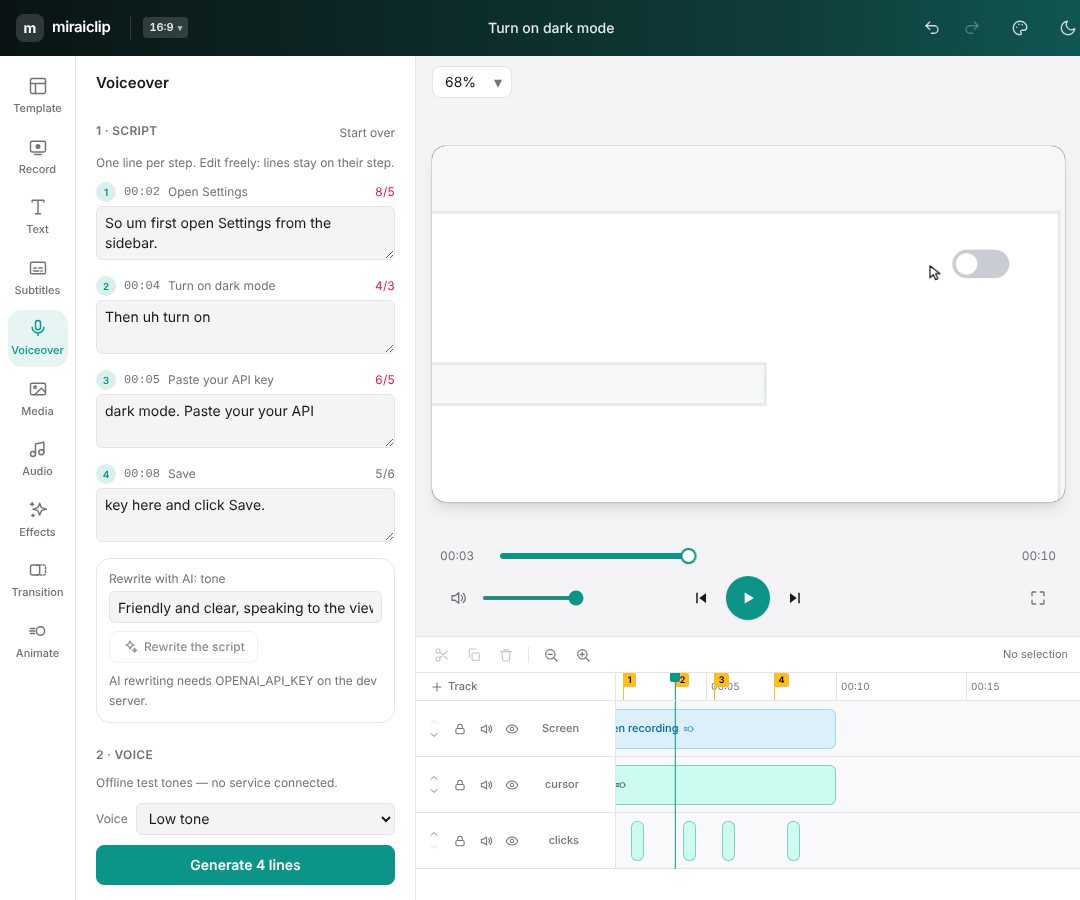
1 · Script
- From N steps writes one line per step, filled with what you said during that step (or the step's name). From the speech builds lines from the transcript instead, broken at pauses.
- Edit any line. The counter shows its words against what fits the step (about 2.6 words per second) and turns red when it's too long.
- Rewrite the script rewrites every line in the tone you describe, keeping each line within its step's length. It needs an AI model: a provider key on the server, or your own key (Set up AI, or the gear next to the Assistant's model).
- Start over clears the script.
2 · Voice
Pick the Service and Voice, then Generate N lines. After you edit lines, only the changed ones are spoken again (Generate N changed lines).
3 · Fit to the video
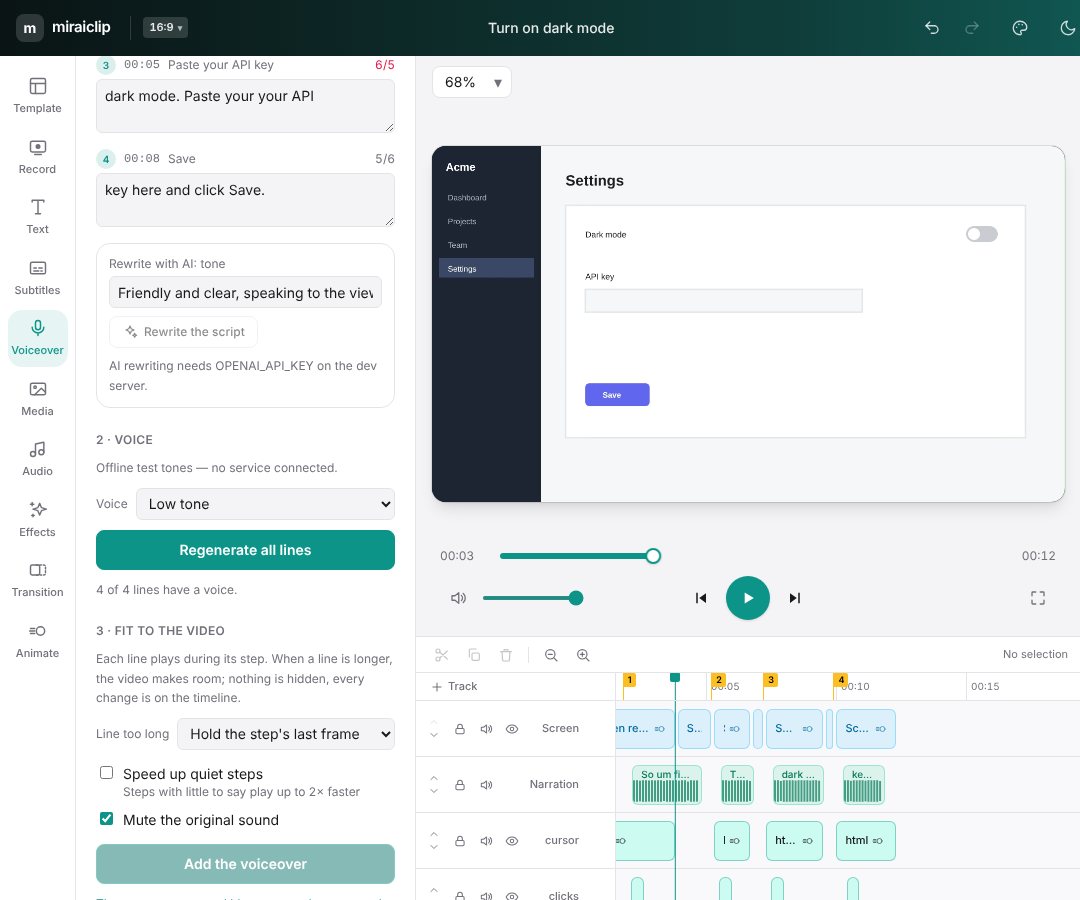
Each line plays during its step. When a line is longer than its step, the video makes room:
| Option | What happens |
|---|---|
| Line too long → Hold the step's last frame | The step's last frame is held until the line ends |
| Line too long → Slow the step down (to ½) | The step plays slower |
| Speed up quiet steps | Steps with little to say play up to 2× faster |
| Mute the original sound | Your recorded audio is muted under the voiceover |
Click Add the voiceover. The voice goes on a Narration track and the list below shows what happened to each line. Everything is a normal clip on the timeline, and one undo removes it all. To fit a different voiceover, undo first.
7. Written guide
Click Export, then Written guide.
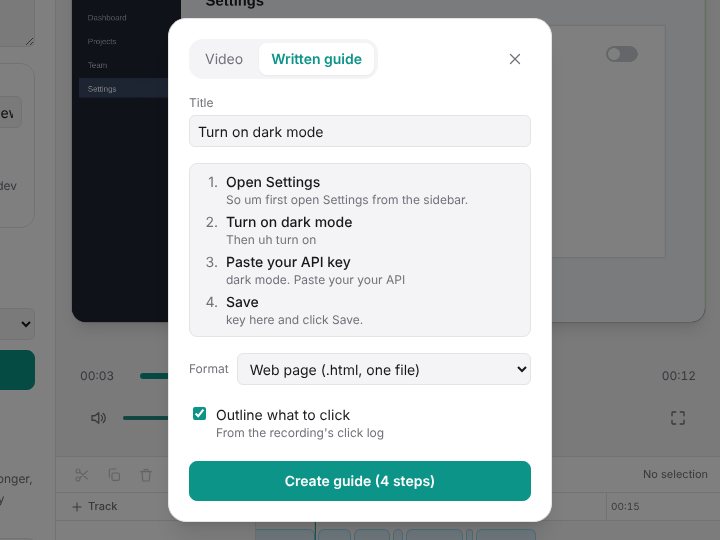
- Check the Title and the steps.
- Pick a Format: a web page (one
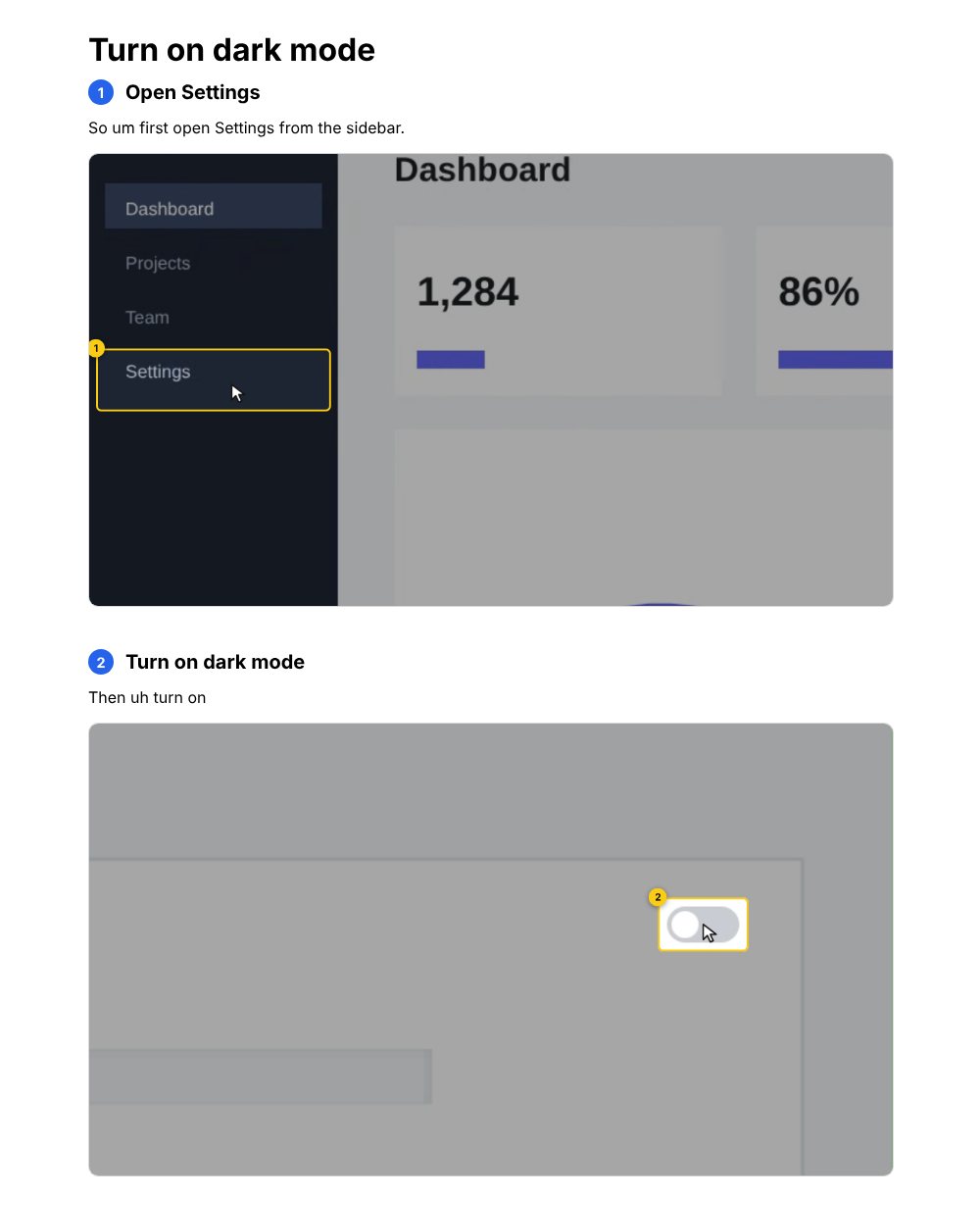
.htmlfile with the screenshots inside), Markdown, or JSON for your help centre. - Outline what to click boxes the clicked control in each screenshot and dims the rest. It needs a recording with a click log.
- Click Create guide. It takes a screenshot per step and downloads the file.
The text of each step comes from the voiceover script, or from what you said with the filler words removed.
8. Translate
Project → Translate… makes a copy of the project in each language you pick.
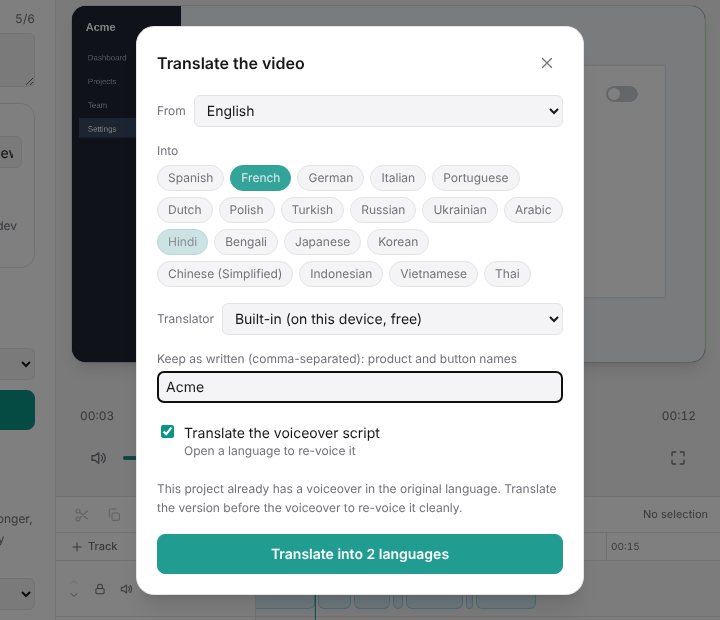
- Pick the language you recorded in (From) and the languages to translate Into.
- Pick the Translator: Built-in (Chrome's on-device translator: free, nothing leaves the computer) or AI model (better with tone and context; needs a provider key on the server, or your own key via Set up AI).
- Under Keep as written, list product and button names that must not be translated.
- Translate the voiceover script includes the script, so you can re-voice each language.
- Click Translate. Each language gets Download (the project file) and Open.
On-screen text, captions (word timing kept), text in HTML blocks, step names and the project name are translated. Open loads that language's project. When the script was translated too, it opens the Voiceover panel with the translated lines: generate the voice and fit it as in step 6. Translate the project before adding the original voiceover; a voiceover that's already on the timeline isn't re-voiced.
9. Brand kit
Project → Brand kit… keeps your brand in this browser and applies it to any project.
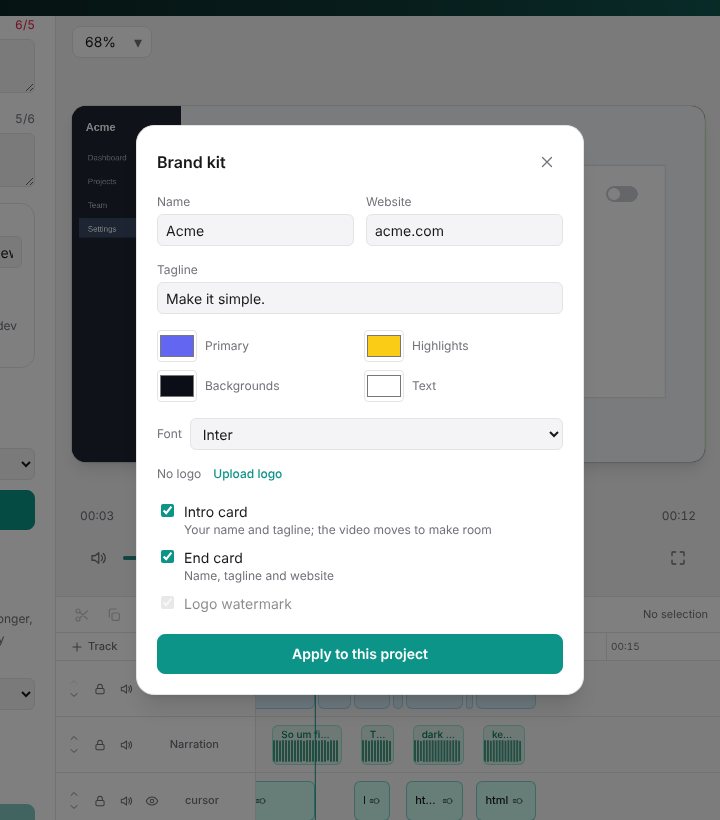
| Setting | Used for |
|---|---|
| Name, Tagline, Website | The intro and end cards |
| Primary, Highlights, Backgrounds, Text colours | Blocks and cards, recoloured by role |
| Font | Text, captions and blocks |
| Logo and its corner | The watermark |
| Intro card, End card, Logo watermark | Which of these to add |
Click Apply to this project. The video moves to make room for the intro. Applying it again doesn't add a second intro or logo, and one undo removes it all.
Where things are saved
Projects save and open as JSON as usual (Project → Save project). The recording's click log is a file next to the video, linked from the project. Transcripts, the voiceover script and takes, your polish settings and the brand kit are saved in the browser you used. Open the project in another browser and you can transcribe or generate the voice again.
Keys
Set these on the server that runs the editor. They never reach the browser.
| Variable | Enables |
|---|---|
OPENAI_API_KEY (and optional OPENAI_BASE_URL) | Transcription, generated voices, the script rewrite, AI translation |
ANTHROPIC_API_KEY, GEMINI_API_KEY, OPENROUTER_API_KEY or another provider key | The script rewrite and AI translation |
DEEPGRAM_API_KEY | Transcription |
Without server keys, users can add their own AI provider key (the gear next to the Assistant's model) (for the script rewrite and AI translation). Without any key you can still record, import, mark steps, polish, create written guides, translate with Chrome's built-in translator, and apply a brand kit.