Overview
Record your screen once. Get an edited product video, a written guide and a version in every language.
Coming in the next release
The packages on these pages (@miraiclip/capture, screencast, transcript, narration, guides, localize and brand) are built and tested, and ship in the next SDK release, together with the panels in the Editor UI kit described here.
Record a walkthrough of your product, with your voice, and Miraiclip turns it into:
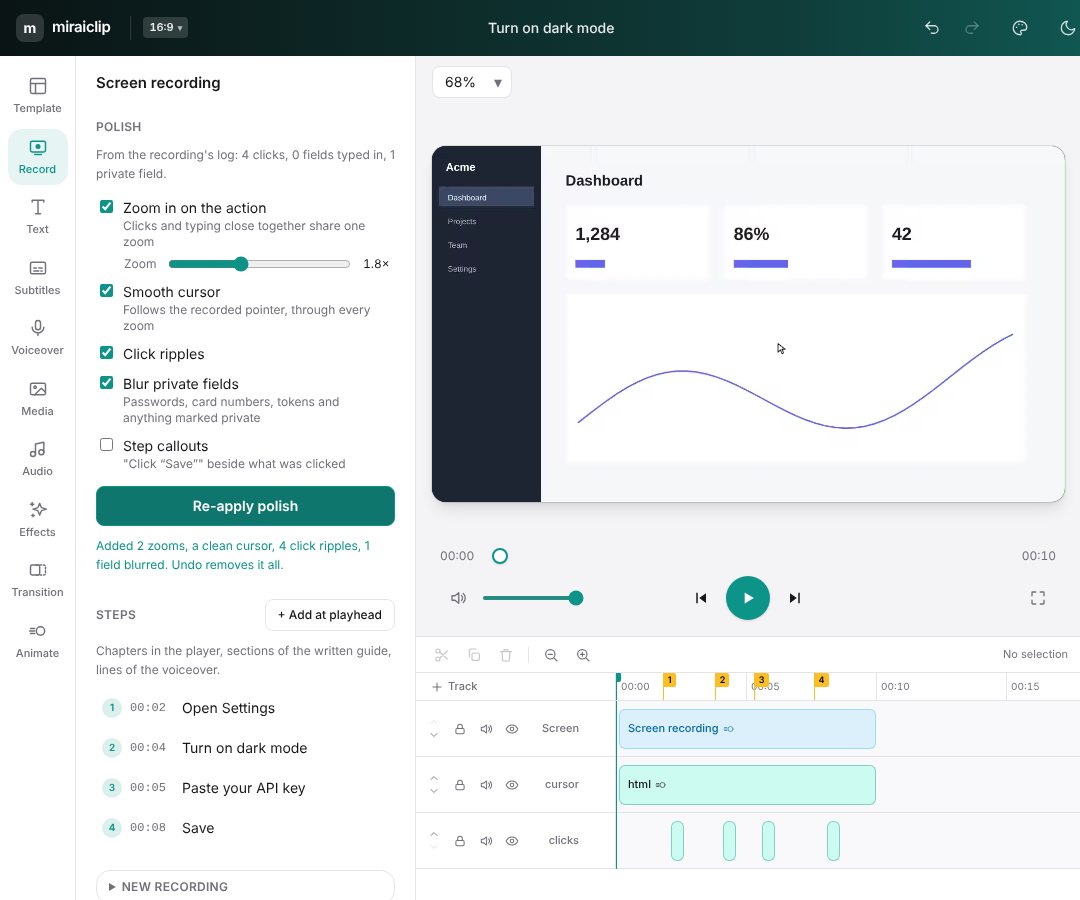
- A polished product video: zooms on what you click, a smooth cursor, click ripples, hidden passwords and keys, captions, a clean voiceover, your brand's intro and outro.
- A written guide: one section per step, with a screenshot that outlines what to click. As a web page, Markdown or JSON for your help centre.
- Every language: one copy of the project per language, with on-screen text, captions, step names and the voiceover script translated.
Every result is ordinary edits on the timeline. You can see each zoom, cut and freeze frame, change it, or undo it in one step. Nothing runs on a Miraiclip server.
What you can do
| Feature | What it does | In the Editor UI kit |
|---|---|---|
| Record | Screen, microphone and camera in the browser | Record → Record your screen |
| Capture extension | Records a browser tab, a window or the whole screen, with a log of clicks, typing and private fields | Record → Import a recording |
| Desktop recorder | A macOS and Windows app: records a whole screen and logs clicks, shortcuts and scrolls in every app | Record → Import a recording |
| Steps | Mark the steps of your walkthrough. They become chapters, guide sections and voiceover lines | Record → Steps, and the numbered flags on the timeline |
| Polish | Zooms, a smooth cursor in five styles, click ripples, hidden private fields and step callouts, from the click log | Record → Polish |
| Camera | Your camera as a rectangle, rounded box, square or circle, with a border, in a corner or anywhere you drag it | Record → Camera |
| Transcribe | Word-by-word transcript of what you said | Subtitles → Speech |
| Clean up speech | Removes "um", "uh", repeated words and long pauses in one cut | Subtitles → Speech |
| Edit by text | Select words in the transcript to cut them from the video | Subtitles → Speech |
| Captions | Word-timed captions from the transcript, kept in sync after every cut | Subtitles → Speech |
| Voiceover | A script per step, an AI rewrite, generated speech, fitted to the video | Voiceover |
| Written guide | A step-by-step article with annotated screenshots | Export → Written guide |
| Translate | One project per language | Project → Translate… |
| Brand kit | Your colours, font, logo, intro and end card | Project → Brand kit… |
Three ways to record
| In the editor | With the Capture extension | With the desktop recorder | |
|---|---|---|---|
| Records | A tab, a window or the whole screen, with its sound if you like | A tab, a window or the whole screen | A whole screen (macOS, Windows) |
| Microphone and camera | Both (camera as picture-in-picture) | Both (camera as picture-in-picture) | Both (camera as picture-in-picture) |
| Steps | "Mark step" while recording, or add them later | "+ Step" while recording, or add them later | Flag or Alt+Shift+S while recording, or add them later |
| Click log | No: the editor can't see clicks in another tab or app | Yes: clicks, typing, scrolls, page changes, private fields. Exact for a tab; for a window or screen, every Chrome tab and window (not other apps) | Yes, in every app: clicks, shortcuts, scrolls, the pointer's path. Not yet what was clicked or private fields |
| Automatic polish | Not available (no log to plan from) | Zooms, cursor, ripples, blurs, callouts | Zooms, pointer highlight, ripples |
Steps, speech cleanup, captions, voiceover, guides, translation and the brand kit work with all three. Polish needs the click log: record with the extension for browser walkthroughs (it also blurs private fields), and with the desktop recorder when you leave the browser.
The usual order
- Record, marking a step each time you start something new.
- Clean up what you said (Subtitles → Speech).
- Polish (Record → Polish).
- Voiceover, if you want one instead of your own voice.
- Brand, then export the video, the written guide, and the translations.
The order is flexible. Cuts and the voiceover change the video's timing, and when the recording is already polished, the polish is planned again on the new timing in the same undo step. The zooms, cursor and blurs stay on the action.
Private by design
The click log never records what was typed or the value of any field. Typing is logged as "text was typed here". Only named keys and shortcuts such as Enter or Ctrl+k keep their names. Password, card, one-time-code and secret-looking fields (token, API key, PIN…) are flagged as private, along with anything inside an element marked data-private or data-sensitive. Private fields are pixelated in the video and never outlined in a written guide.
What you need
| Requirement | For |
|---|---|
| Chrome or Edge on a desktop computer | Recording (WebCodecs and screen capture) |
OPENAI_API_KEY or DEEPGRAM_API_KEY on your server | Transcription |
OPENAI_API_KEY (or another voice generator) | Generated voiceover |
| A chat model: any provider key on your server, or the user's own (Models and API keys) | AI script rewrite and AI translation |
| Chrome's built-in translator, or a chat model, or DeepL | Translation |
Keys stay on your server. The packages include small server handlers so the browser never sees them.